Off Camera MCP
Make posts from Claude or ChatGPT.
Add one link to your AI app and sign in once. Then just ask, and it makes your posts and plans them for you.
Make 5 posts for my brand and plan them for this week.
- Make posts · Off Camera
- Plan or post now · Off Camera
Done. 5 posts, planned Monday to Friday at 9 am:
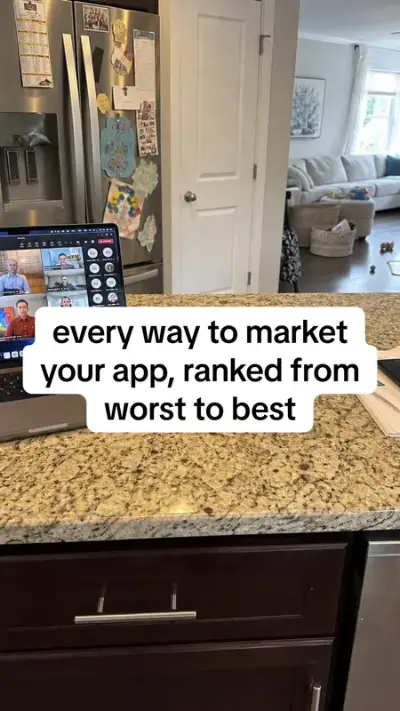
Mon 9 am

Tue 9 am
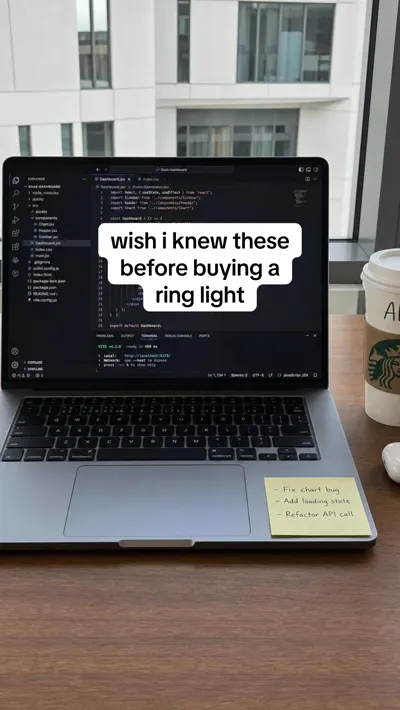
Wed 9 am
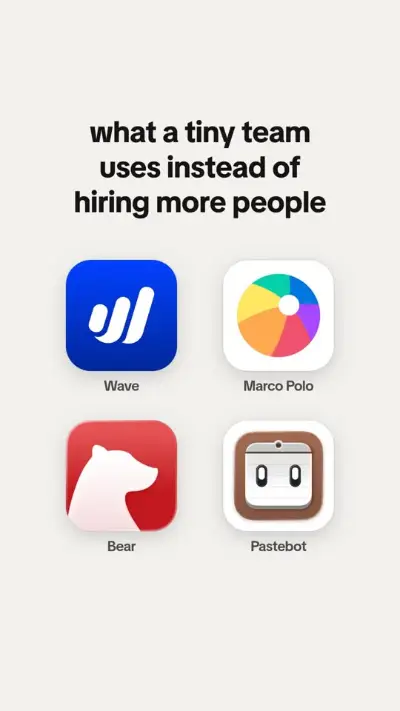
Thu 9 am
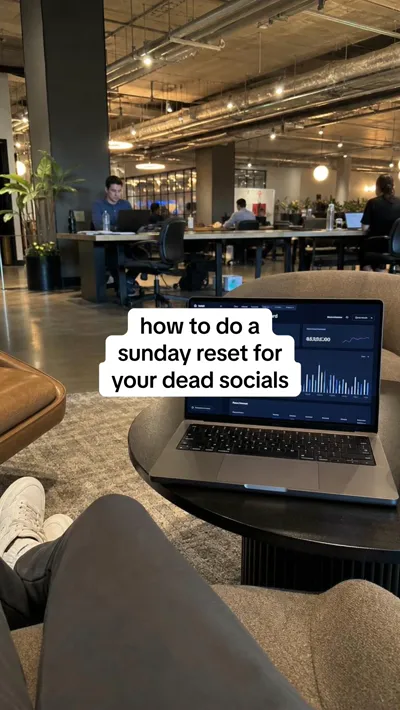
Fri 9 am
Want me to change any of them before they go out?
Things you can ask. In your own words.
Tap one to copy it, then paste it into your AI app. Change the words however you like.
What it can do
The same things you can do in the app, for one brand, within your plan.
- ReadsChanges nothing
- MakesUses your plan
- PostsGoes public
Your AI uses your plan's posts and AI credits. Done-for-you reels from your app demo use 20 AI credits a reel, and reaction reels use AI credits too, only after your yes. See the plans
For developers: every tool
Reads
Changes nothingReads your brand, your posts, your accounts and what's left this month. Changes nothing.
See the brand
list_brandsThe brand this link works in, with its website and how many posts it has.
Read what Off Camera knows
get_brandWhat Off Camera knows about the brand from its website: what it makes, who it's for, its tone.
List posts
list_postsYour posts: drafts in Dailies, the Library, planned and posted.
Open a post
get_postOne post: its words, caption, hashtags, a link to open it, and its files once exported.
Check on a job
get_jobHow a longer job is going (making posts, reading a website, exporting), and what it made.
See your accounts
list_accountsYour brand's TikTok, Instagram and YouTube accounts, and which ones are linked.
Check what's left
get_usageYour plan, and the posts and AI credits left this month.
Check a copied video
get_cloneHow a copy is going: what we found and your plan, then its finished versions (v1, v2 and on).
See your reactions
list_reactionsYour batches of AI reaction reels, who can be in them (our cast or your twin) and the credits a reel uses.
Check reels from your demo
get_demo_reelsHow a batch of reels made from your app demo is going: waiting for the demo, being made, or done, with each reel's link; and the AI credits a reel uses.
Check a reactions batch
get_reactionsHow a batch of reaction reels is going, and its finished reels with links to watch them.
Makes
Uses your planMakes posts and their files the way you would here, from your plan's posts.
Make posts
make_postsMakes 1 to 8 posts: a Dailies deck from your website, or slideshows, memes and walls of text about an idea.
Read your website
read_websiteReads a website into the brand: the first read, or a fresh one. Takes about a minute.
Export a post
export_postMakes a post's video or pictures, in 9:16 or 4:5 where the kind allows it.
Copy a video
clone_adReads a TikTok, Reel or Short that works and writes your version of it about your product: what it is, your plan, and the AI credits making it uses. Uses no AI credits itself.
Make the copied video
make_cloneMakes your copy of a video after you say yes. Uses AI credits, given back if it fails.
Uses AI credits, after your yes
Make reels from your demo
make_demo_reelsMakes 1 to 6 finished reels from your app demo after you say yes: our reaction clips cut into it, with hooks and numbered steps on screen, silent for a trending sound. 20 AI credits a reel, none for one that fails. Gives you a link to drop the demo, or takes a link to it.
Uses AI credits, after your yes
Make reactions
make_reactionsMakes 5 to 50 silent AI reaction reels for your app after you say yes. Uses AI credits; a reel that fails gives its credits back.
Uses AI credits, after your yes
Stop a reactions batch
stop_reactionsStops the reels in a batch that haven't started yet, and gives their credits back.
Posts
Goes publicPlans a post on your linked accounts, or posts it now. The only thing that goes public.
Plan or post now
schedule_postPlans a post on your accounts at a time, or posts it now.
Making posts and reading a website take a little while, so those tools hand back a job, and your AI checks it with get_job until it's done. Every answer starts with one plain sentence, then the details.
60 requests a minute for each connected app. Your account's own limits count too: 300 requests a minute, 60 exports an hour for each brand, and a daily cap on new decks and website reads.
Connect your AI app. Pick yours.
Three steps for each app, with the same link for everyone. Settings, Claude and ChatGPT walks you through them too.
Claude
The website, the desktop app and the phone app
Copy the link
Copy Off Camera's link and paste it into Claude. It's the same for everyone, and it only works once you sign in.
Add it and sign in
In Claude, open Customize, then Connectors (opens in a new tab). Click + and pick Add custom connector. Name it Off Camera, paste the link and click Add. Then click Connect. Off Camera opens: sign in if it asks, then click Allow.
Ask for posts
In a chat, turn Off Camera on from the + menu, under Connectors, and ask for posts.
For developers
Claude Desktop with a private key, no sign-in. In Claude Desktop, open Settings, Developer, Edit Config, paste this into the file, put your key in, save, and restart Claude. It needs Node.js on your computer.
Make a private key in Settings, Claude and ChatGPT: pick Another app, then Your app can't sign in? It starts with oc_live_, works in one brand and is shown once. Put yours where it says oc_live_YOUR_KEY, and keep it like a password.
{
  "mcpServers": {
    "offcamera": {
      "command": "npx",
      "args": ["-y", "mcp-remote", "https://offcamera.co/mcp", "--header", "Authorization:${OFFCAMERA_AUTH}"],
      "env": { "OFFCAMERA_AUTH": "Bearer oc_live_YOUR_KEY" }
    }
  }
}
ChatGPT
With a paid ChatGPT plan
Copy the link
Copy Off Camera's link and paste it into ChatGPT. It's the same for everyone, and it only works once you sign in.
Add it and sign in
Go to ChatGPT's plugins (opens in a new tab), click + and pick Add custom MCP server. No + button? Turn on Developer mode in Settings first. Name it Off Camera, paste the link as the server URL, pick OAuth and click Create. Off Camera opens: sign in if it asks, then click Allow.
Ask for posts
In a chat, type @Off Camera and ask for posts. ChatGPT asks you before it uses a tool that changes something.
For developers
OpenAI's API. If you build with OpenAI's API, you can connect with a private key. OpenAI asks you to approve each call unless you turn that off: this sample turns it off ("require_approval": "never"), so it runs to the end.
Make a private key in Settings, Claude and ChatGPT: pick Another app, then Your app can't sign in? It starts with oc_live_, works in one brand and is shown once. Put yours where it says oc_live_YOUR_KEY, and keep it like a password.
from openai import OpenAI

client = OpenAI()
response = client.responses.create(
    model="gpt-5",
    tools=[{
        "type": "mcp",
        "server_label": "offcamera",
        "server_url": "https://offcamera.co/mcp",
        "headers": {"Authorization": "Bearer oc_live_YOUR_KEY"},
        "require_approval": "never",
    }],
    input="Make 5 posts for my brand and tell me when they're ready.",
)
print(response.output_text)
Cursor
One click, then sign in
Add it to Cursor
Click the button. Cursor opens and asks to install Off Camera: click Install.
Add to CursorSign in
In Cursor's settings, under MCP, click Connect next to Off Camera. Off Camera opens: sign in if it asks, then click Allow.
Ask for posts
In Cursor's chat, ask for posts. It checks with you before each step unless you let it run.
For developers
By hand. Open ~/.cursor/mcp.json (the .cursor folder in your home folder) and paste this. Cursor asks you to sign in the first time.
{
  "mcpServers": {
    "offcamera": { "url": "https://offcamera.co/mcp" }
  }
}
VS Code
One click, with GitHub Copilot
Add it to VS Code
Click the button. VS Code opens: click Install.
Add to VS CodeSign in
When VS Code starts Off Camera, it asks to sign in: click Allow. Off Camera opens: sign in if it asks, then click Allow.
Ask for posts
Open Copilot Chat, pick Agent, and ask for posts.
For developers
By hand. Run MCP: Add Server from the Command Palette, or add this to your mcp.json. VS Code calls them servers.
{
  "servers": {
    "offcamera": { "type": "http", "url": "https://offcamera.co/mcp" }
  }
}
Claude Code
One line in your terminal
Run one line
Run the line below once in your terminal. It adds Off Camera to every project on this computer.
Sign in
Start Claude Code, type
/mcp, pick offcamera and Authenticate. Off Camera opens: sign in if it asks, then click Allow.Ask for posts
Ask Claude Code for posts in your own words.
claude mcp add --transport http --scope user offcamera https://offcamera.co/mcpFor developers
Or send a private key in a header, with no sign-in:
Make a private key in Settings, Claude and ChatGPT: pick Another app, then Your app can't sign in? It starts with oc_live_, works in one brand and is shown once. Put yours where it says oc_live_YOUR_KEY, and keep it like a password.
claude mcp add --transport http --scope user offcamera https://offcamera.co/mcp --header "Authorization: Bearer oc_live_YOUR_KEY"Codex
Two lines in your terminal
Run one line
Run the first line below once in your terminal. The Codex app and the IDE extension read the same setup, so they get Off Camera too.
Sign in
Then run the second line. Off Camera opens: sign in if it asks, then click Allow.
Ask for posts
Start Codex and ask for posts.
codex mcp add offcamera --url https://offcamera.co/mcpcodex mcp login offcameraWindsurf (now Devin Desktop)
A few lines in one file
Open its MCP file
In Windsurf (now Devin Desktop), open the … menu in the Cascade panel, then MCPs, then Open MCP config file.
Paste and save
Paste the lines below, save, and refresh the MCP list. If the file already lists servers, add offcamera next to them.
Sign in and ask
When Off Camera asks you to sign in, sign in and click Allow. Then ask Cascade for posts.
{
  "mcpServers": {
    "offcamera": { "serverUrl": "https://offcamera.co/mcp" }
  }
}
Gemini CLI
One line in your terminal
Run one line
Run the line below once in your terminal.
Sign in
Start Gemini CLI and type
/mcp auth offcamera. Off Camera opens: sign in if it asks, then click Allow.Ask for posts
Ask Gemini for posts in your own words.
gemini mcp add --transport http --scope user offcamera https://offcamera.co/mcpOther AI apps
Any AI app that connects to MCP over the web
Copy the link
Copy Off Camera's link and paste it into your app. It's the same for everyone, and it only works once you sign in.
Add it and sign in
Where your app adds an MCP connection, paste the link as its address. When it asks you to sign in, sign in to Off Camera and click Allow.
Ask for posts
Ask your AI app for posts in your own words.
For developers
Any app that connects to MCP servers over the web (“Streamable HTTP”) works. It finds the sign-in by itself: OAuth 2.1 with dynamic client registration and PKCE, from the 401's resource_metadata. An app that can't sign in can send a private key in a header instead: the address https://offcamera.co/mcp and the header Authorization: Bearer oc_live_YOUR_KEY.
Make a private key in Settings, Claude and ChatGPT: pick Another app, then Your app can't sign in? It starts with oc_live_, works in one brand and is shown once. Put yours where it says oc_live_YOUR_KEY, and keep it like a password.
Questions, answered.
Your plan, safety, and what Off Camera keeps.
What is MCP?
It's how AI apps like Claude use other apps, and Off Camera MCP is ours. Add offcamera.co/mcp to your AI app and sign in once, then ask for posts in your own words: it uses Off Camera for you, with the same plan, limits and checks as the app.
Does it use my plan?
Yes. Your AI uses your plan's posts and AI credits, the same as you do in the app. Done-for-you reels from your app demo use 20 AI credits a reel, and reaction reels use AI credits too, only after your yes. When something runs out, your AI gets a plain sentence that says so.
Can it post without asking me?
Posting is the one thing that goes public. Ask your AI to show you a post before it plans it. Claude and ChatGPT ask you before they use a tool, unless you tell them not to.
What can't it do?
It works only in the brands you allow when you sign in (all of them, or the ones you pick), and can't see anyone else's. It can't change your plan, buy anything, delete anything, connect or disconnect apps, or see your password or payment details.
Can I connect more than one app?
Yes. Add the same link to each AI app and sign in from each. Each one shows in Settings, and you can disconnect one without the others.
Is the link a secret?
No. It's the same for everyone, and it only works after you sign in and click Allow. If you made a private link or key before, that one is a secret: keep it like a password, and cancel it in Settings, Claude and ChatGPT if it gets out. Off Camera keeps only a scrambled copy of each.
What does Off Camera keep about my AI app?
Settings lists the apps you connected: each one's name, its brands and when it was last used, like “Last used 2 minutes ago”. To know which app it was, Off Camera keeps the name the app gives itself when it connects (for example “claude-ai”), and nothing else about it: not its version, not your address, not anything you ask it.
How does copying a video work?
Give your AI the link to a TikTok, Reel or Short that works, like “copy this TikTok for my app”. Reading it uses no AI credits: your AI shows you your version first, with the same kind of ad, new words about your app, the AI video prompt and the AI credits it uses. Nothing is made until you say yes, and if the cost changed, nothing is made. The finished video cuts to your own screen recording from Media, so your real app is never drawn by AI. The ad is only read for its structure: its video, face, voice and music are never copied.
Stuck, or want something it can't do yet? Write to team@offcamera.co. The Terms cover what your AI does with Off Camera, the same as what you do.
Ask for this week's posts. Today.
Paste the link into your AI app, sign in, and ask in your own words.